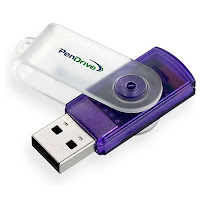
You can create multiple partitions and store your private data Into Flash USB Drive. Only the first partition will be visible, and the other partitions will not show up on any other PC, but your own.and also you can avoid viruses affecting this data when plugged in on another computer.So to create partitions
Follow The Step As Given Below:
-Plug in your pen drive into your PC’s USB port. Next, right-click on ‘My Computer’ and click on ‘Manage’ in the context menu. Click on ‘Device Manager’ on the left pane. This will show all the hardware devices connected to your PC. Now, on the right pane, scroll down to ‘Disk Drives’ and you should see your pen drive connected here. Right-click on the pen drive and select ‘Properties’.
-In the properties window that just opened, click on the ‘Details’ tab. From the scroll down menu under ‘Property’, choose ‘Device Instance Path’. You should see a string of characters highlighted in the ‘Value’ window below, which should read something like ‘USBSTORDISK&VEN_&PROD…..’ Right-click on this value and select ‘Copy’. Now close all the windows without saving changes.
-Now open the folder that you uncompressed after downloading the universal USB flash drive driver. In this folder, find and open the file named ‘cfadisk.inf’ in ‘Notepad’ or any test editor you prefer (Notepad++ is ideal to be used here’ (download from ‘notepad-plus-plus.org’).
-Now locate the words ‘device_instance_id_goes_here’, which is available on line 26. You need to replace these words with the string you just copied to the clipboard from the Device Manager. Save the file and close the editor.
-Now go back to the ‘Device Manager’ page (repeat step 1). This time click on the ‘Driver’ tab and click the button ‘Update driver’
-On the next window, choose ‘Browse my computer for driver software’ when the system asks how you want to search for the driver software. Then on the next window, choose ‘Let me pick from a list of drivers …. ‘.
-On the next window, uncheck the box ‘Show compatible hardware’ and click on the ‘Have disk button’. Now click on ‘Browse’ and from the universal USB driver folder on your desktop select the ‘cfadisk.inf’ file and click on the ‘Open button’, followed by the ‘OK’ and then ‘Next’ buttons on the previous windows.
-An update driver warning message should show up stating that you are trying to install a driver, which is not compatible with your hardware. Ignore the message and click on ‘Yes’. The system will start installing the driver and show up another warning that the driver is not a verified or authentic driver. Ignore this one message and click on ‘Install this driver software anyway’. Let the system update the driver and you shall receive a message of a successful driver update.
Note: You can use this modified driver for this pen drive only. To use another pen drive, you will need to do the whole process again.
-That’s all you needed to do. Now once you are back to the ‘Computer Management’ window, click on ‘Disk Management’ from the left pane and start partitioning your pen drive as you would with a regular hard drive. You can create multiple partitions and format them, accordingly.
Partiitioning the flash drive, like you would a hard drive
Note: You can access all the partitions on the pen drive only from your PC. Other PCs will only be able to see the first partition and the rest will be unavailable. Make a copy of the driver on the first partition of the pen drive and you can install it on other PCs, in case you need to access the other partitions.
This way, you can plug in the pen drive on your friend’s PCs without worrying about your private data. To reset everything back to the way it was, simply delete the partitions completely and uninstall/delete the driver for the pen drive from the Device Manager.